
AI coding tools such as Claude Code and Cursor already write decent UI code. The friction is elsewhere: the design — colours, spacing, components, the design system — usually lives in a separate tool the agent cannot read, let alone edit. So the agent guesses the interface, and designers compare screens one by one to pull it back in line.
In 2026 that gap is being closed with the Model Context Protocol (MCP), an open standard that lets agents connect to a design tool and read and write directly. This article looks at three representative options: pen.dev, Figma and Penpot.
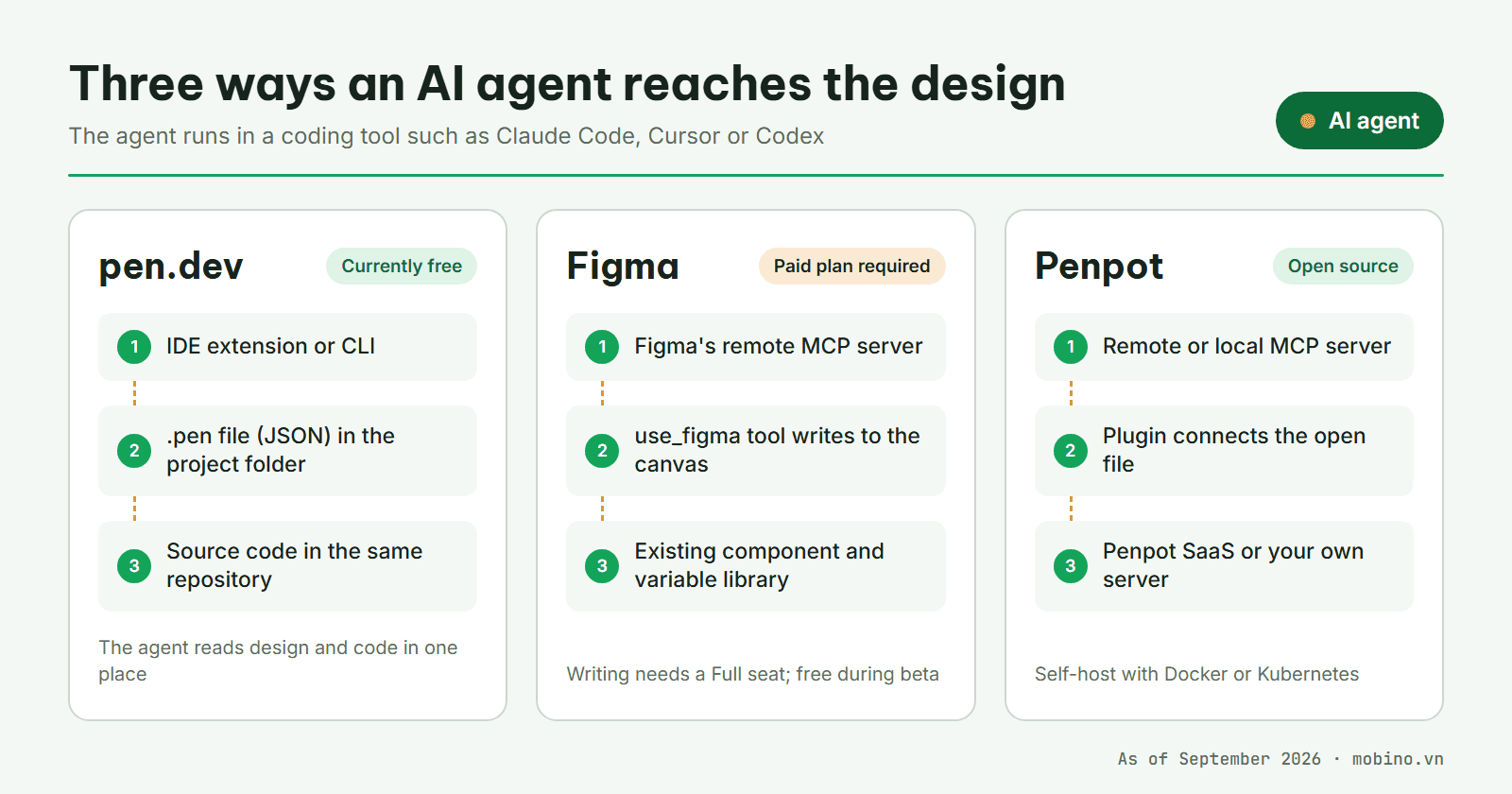
pen.dev: a design canvas that sits next to the code
pen.dev is a vector design tool built for agent workflows from the start. It runs as a desktop app on macOS, Windows and Linux, with extensions for VS Code, Cursor and Windsurf, plus a CLI installed via npm for automation.
The difference is the file format. Designs are saved as .pen files — a JSON structure describing an object tree, much like HTML or SVG, with a publicly documented schema. Because it is a text file in the project folder, an agent can read the design and the code in one pass.
Design-to-code is handled by the agent rather than a fixed exporter. The docs list React, Next.js, Vue, Svelte and HTML/CSS; Tailwind and CSS Modules; shadcn/ui, Radix and MUI. In the other direction, the agent can recreate existing components from code as a design. pen.dev connects to many models (Claude, OpenAI, Gemini, Qwen, DeepSeek and more), imports Figma files, and supports both MCP and a CLI.
On cost, the pen.dev pricing page says the product is currently free and paid plans may come later.
Sources: pen.dev · .pen format · Design ↔ Code · Pricing
Figma: opening the canvas to agents, on top of an existing design system
On 24 March 2026 Figma announced that agents can write directly to the canvas through its MCP server. Using the use_figma tool, an agent creates and edits frames, components, variants, variables and auto layout — using the team's own library components and variables rather than drawing from scratch.
Figma ships "skills": markdown instruction sets that steer the agent to work the team's way, such as generating a library, applying a design system or syncing tokens. Named clients include Claude Code, Codex, Cursor, Copilot in VS Code, Warp and several others.
The conditions are worth reading closely. According to the Figma help centre, writing to the canvas is available to Full and Dev seats on paid plans, with Dev seats read-only outside drafts, and it works only through the remote MCP server. Figma says the feature is free during beta and will move to usage-based pricing. The developer docs also note a 20 KB limit per response and no image support yet.
Figma's biggest advantage is not the agent feature itself but the fact that most design teams already keep their design system there. An agent working from an existing library produces on-brand output from the first attempt.
Sources: Figma Blog — Agents, Meet the Figma Canvas · Figma Help — Figma MCP server · Figma Developers — Write to canvas
Penpot: open source and self-hostable
Penpot is a browser-based design and prototyping tool, open source under the MPL-2.0 licence. Companies can use the SaaS version or self-host with Docker or Kubernetes. Penpot works with open standards such as SVG, CSS, HTML and JSON.
The Penpot MCP server is official and runs two ways: a remote server operated by Penpot, or a local one installed via npm on your own machine. A plugin inside Penpot connects the open file to the MCP server. Agents can read pages, components, styles and tokens, and write: create, rename and organise components, apply tokens, generate variants or new screens. The MCP server is free.
For organisations that may not put design files on a foreign cloud service, self-hosted Penpot with a local MCP server is one of the few setups that keeps all of that data inside their own infrastructure.
Sources: Penpot Help — MCP server · Penpot on GitHub
Which one to choose
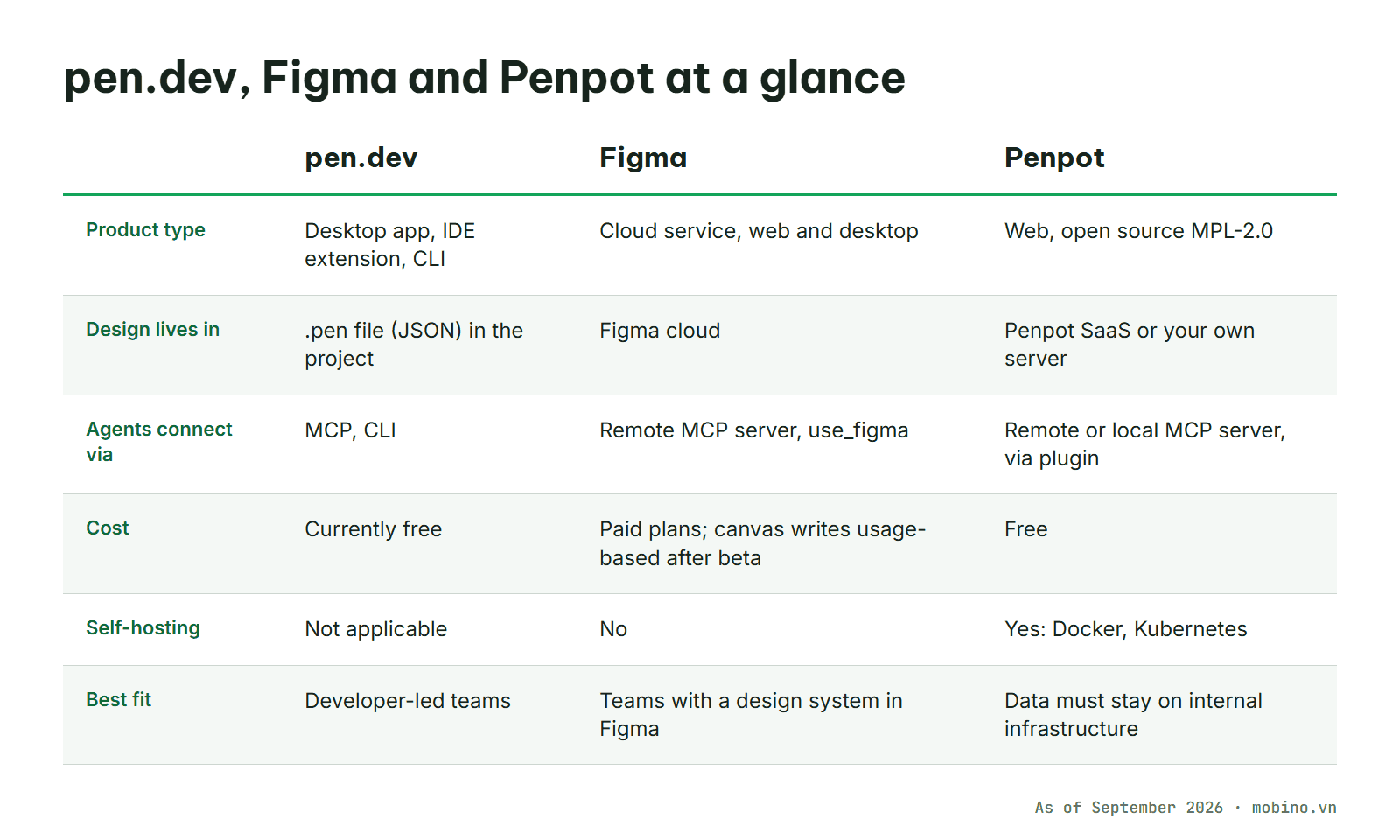
- Your design system already lives in Figma: use the Figma MCP server. Lowest switching cost, but it needs a paid plan and you should budget for usage-based charges after the beta.
- Design data must stay on internal infrastructure (public sector, banking, energy): self-hosted Penpot with a local MCP server. No licence fees, but someone has to run it.
- A developer-led team that wants designs in the repository next to the code: pen.dev. Free for now and tightly tied to the IDE, but a young product whose pricing is not settled — try it on a small project first.
Applying this in a Mendix team: developers and BAs
Mendix 11 has opened MCP in both directions. From Studio Pro 11.8, the Maia MCP Client lets Maia call tools on external MCP servers, and the Mendix docs use a Figma connection as their example. From Studio Pro 11.10, the Studio Pro MCP Server lets external agents such as Claude Code use the capabilities of Maia inside the project. Together with the Atlas UI Kit for Figma, designs and Mendix apps now connect quite directly.
For business analysts
- Build mockups from user stories with the Atlas UI Kit for Figma. Its components map 1:1 to Studio Pro widgets and layouts, so what the BA draws is what a developer can build, without unplanned custom widgets.
- Have an agent draft a few screen options through the MCP server of the design tool, then review them with business users before a single microflow is written. Changing a mockup is far cheaper than changing an app.
- The official Atlas UI Kit is currently for Figma. If your team uses Penpot or pen.dev, rebuild the core Atlas components (buttons, forms, data grid, layouts) as your own library so mockups stay within what Mendix provides out of the box.
- Annotate mockups with data fields, validation rules and access rights. That feeds the domain model, validation and security directly, instead of leaving developers to infer them from a picture.
For Mendix developers
- Connect the Figma MCP server to the Maia MCP Client (Studio Pro 11.8 and later, authenticated with a personal access token) so Maia can read design context while building pages. Note that Maia supports only remote MCP servers over HTTP or SSE, and only their tools.
- Use Maia for Pages with a wireframe or mockup screenshot (up to 512 KB) to generate the page skeleton. From Studio Pro 11.9 Maia can build custom pages and edit existing ones; it takes the layout but not the colours, so theming still goes through Atlas.
- Turn design tokens into the theme: Atlas 4 in Studio Pro 11 uses CSS variables (such as --brand-primary) in custom-variables.scss. An agent can read Figma variables, Penpot tokens or .pen variables and generate that file — a plain text file you can check in code review.
- Connect the Studio Pro MCP Server (11.10 and later) to Claude Code alongside the MCP server of the design tool: one agent reads the design and works on the domain model and microflows in Studio Pro. In 11.10 the MCP Server cannot generate pages yet, and AI tokens are billed to your own model provider account.
- Mendix pluggable widgets are React components written in JavaScript or TypeScript. When you need a custom widget, React code an agent generates from the design (for example via pen.dev) is a good starting point before packaging it with the Pluggable Widgets API.
In both roles, treat agent output as a draft. Agents shorten the scaffolding; decisions about business rules, data and access still need a person to approve them.
Sources: Mendix — Atlas UI Kit for Figma · Maia MCP Client · Studio Pro MCP Server · Maia for Pages · Atlas 4 · Pluggable Widgets API
For enterprises in Vietnam
All three tools solve the same problem: letting agents work from a shared source of truth for the interface instead of guessing. So the deciding question is rarely features; it is where your design system lives and where design data is allowed to live.
One practical note: an agent is only as good as the design system it is given. If the component library is fragmented, naming is arbitrary and tokens are inconsistent, the agent will replicate that mess faster than a person would. Time spent standardising the library before opening it to agents usually pays back more than picking the right tool.